Cookbook — Turn Concepts into Executable Recipes
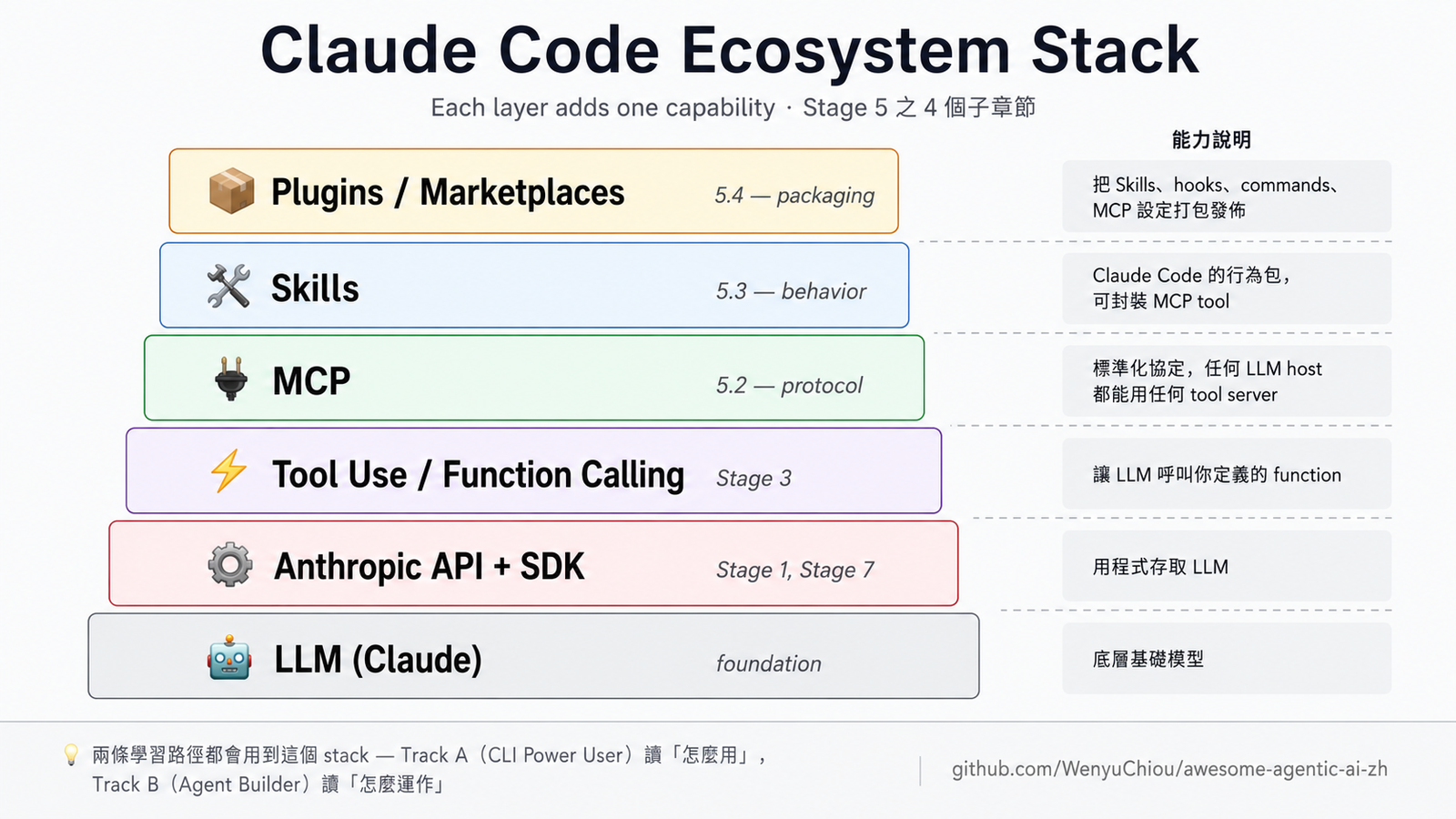
Stage 5 (Claude Code Ecosystem) talks about "Concepts" and "Available Tools" with
mcp-skills-catalog.md. This cookbook fills in the gap in between: "How to build it". Each recipe is a step-by-step guide + sample code + common pitfalls, designed to be completed in about 30-50 minutes.This is not a reference or a tutorial—it's a recipe. Pick the one you need and start cooking.
📋 Table of Contents
- Write Your First Skill (SKILL.md Anatomy)
- Write Your First MCP Server (Python SDK)
- Office Docs Workflow
- NotebookLM Workflow
- Zotero Workflow
- Local LLM + CLI Agent Quick Walkthrough
1. Write Your First Skill
A Skill is a folder containing
SKILL.md, which Claude Code discovers automatically upon startup and loads contextually. The minimum viable version can run with as few as 50 lines of code.
Why
The difference between writing a Skill and adding a few instructions within a prompt lies in:
- Skills are per-domain, meaning they don't pollute all conversations.
- They can be packaged and shared across projects or teams.
- Claude decides when to load them (based on whether the description matches the context).
Steps
Step 1: Create the Skill Folder
You can place skills in two locations (depending on whether you want user-level or project-level scope):
# User-level (shared across all projects)
mkdir -p ~/.claude/skills/my-first-skill
cd ~/.claude/skills/my-first-skill

# Or Project-level (triggered only within this repo)
mkdir -p .claude/skills/my-first-skill
cd .claude/skills/my-first-skillStep 2: Write SKILL.md
A minimal, working template:
---
name: my-first-skill
description: When the user asks for [SPECIFIC SITUATION], use this skill to [WHAT IT DOES]. Examples include [2-3 trigger phrases]. Do NOT use for [WHAT IT'S NOT FOR].
---

# My First Skill

You are now in the [domain] context.

## When the user asks X, do these steps:

1. First, [action A]
2. Then, [action B]
3. Verify with [check]

## Don't do:

- [anti-pattern 1]
- [anti-pattern 2]

## Reference

- (optional) link to a doc / paper / API specA concrete example: "Organize Python imports by PEP 8 order"
---
name: python-import-organizer
description: When the user pastes Python code or asks to clean up imports / format code / sort imports, organize the imports following PEP 8 + isort order: stdlib first, then third-party, then local. Do NOT use for non-Python code.
---

# Python Import Organizer

When the user wants Python imports cleaned up:

1. Group imports into 3 sections: stdlib / third-party / local
2. Within each group, sort alphabetically
3. Add a blank line between groups
4. Remove unused imports (only if user explicitly asks; otherwise just sort)

## Don't:
- Don't change function code, only the import block
- Don't auto-remove imports without askingStep 3: Test
# Restart Claude Code (to re-discover skills)
# Provide a trigger phrase in the conversation
# e.g., "Help me organize the imports in this Python code."
# Observe if Claude follows the steps in SKILL.mdStep 4 (Advanced): Add Evals
Add evals/evals.json within the skill folder:
{
  "evals": [
    {
      "input": "Organize the imports in this Python code: import os
import requests
from mypackage import foo",
      "expected_behavior": ["Group by stdlib / third-party / local", "Sort alphabetically"]
    }
  ]
}You can then use tools like promptfoo for batch testing.
Common Pitfalls
| Symptom | Cause | Solution |
|---|---|---|
| Claude never triggers my skill | description is too generic, not matching user queries | Add 2-3 specific trigger phrases to description (e.g., "when the user asks X / Y / Z") |
| Triggers but behaves incorrectly | Skill steps in SKILL.md are too abstract | Change to a numbered list, with each step being a clear action |
| Triggers when it shouldn't | description is too broad, matching unrelated queries | Add "Do NOT use for X" to narrow down the scope |
Further Reading
- See Stage 5.3 for a detailed explanation of Skill anatomy.
- Refer to the official skill templates in
anthropics/skills(for docx / xlsx / pptx, etc.) for examples. - Package multiple skills into a plugin → Stage 5.4
2. Write Your First MCP Server
An MCP server is a standalone process that provides tools / resources / prompts to an LLM host (Claude Desktop / Claude Code). The minimal runnable version is less than 50 lines of Python.
Why
- Skills are for Claude's "role + rules"; MCPs are for Claude's "external functions".
- Skills cannot read files or call APIs; MCPs can (any tool you can script).
- Skills only run within Claude Code; MCPs can be used by any LLM host (including custom agents).
Steps
Step 1: Install the Official SDK
pip install mcpStep 2: Write server.py
A minimal template for an echo tool:
# server.py
from mcp.server import Server
from mcp.server.stdio import stdio_server
from mcp.types import Tool, TextContent

app = Server("hello-mcp")

@app.list_tools()
async def list_tools() -> list[Tool]:
    return [
        Tool(
            name="echo",
            description="Echo the input text back to the user.",
            inputSchema={
                "type": "object",
                "properties": {
                    "text": {
                        "type": "string",
                        "description": "Text to echo back",
                    }
                },
                "required": ["text"],
            },
        )
    ]

@app.call_tool()
async def call_tool(name: str, arguments: dict) -> list[TextContent]:
    if name == "echo":
        return [TextContent(type="text", text=f"Echo: {arguments['text']}")]
    raise ValueError(f"Unknown tool: {name}")

async def main():
    async with stdio_server() as (read, write):
        await app.run(read, write, app.create_initialization_options())

if __name__ == "__main__":
    import asyncio
asyncio.run(main())Step 3: Configure in Claude Desktop / Code
Claude Desktop: Edit ~/Library/Application Support/Claude/claude_desktop_config.json (macOS) or %APPDATA%\Claude\claude_desktop_config.json (Windows):
{
  "mcpServers": {
    "hello-mcp": {
      "command": "python",
      "args": ["/absolute/path/to/server.py"]
    }
  }
}Claude Code: Use the claude mcp add command:
claude mcp add hello-mcp python /absolute/path/to/server.pyStep 4: Restart Claude Desktop / Code and Test
You ask: echo "hello world" to me
Claude replies (with a tool call icon): Echo: hello worldCommon Pitfalls
| Symptom | Cause | Solution |
|---|---|---|
| Claude Desktop doesn't see the tool | server.py failed to start | Run python server.py directly in the terminal and check stderr for errors |
| Tool is listed but call fails | Incorrect inputSchema format (missing required fields, wrong type) | Refer to schema-design-cheatsheet.md |
| Claude doesn't proactively call the tool | description is too generic | Refine description to be specific trigger phrases like "When the user asks X, use this tool" |
| stdio vs. SSE? | stdio is for local desktop integration; SSE is for remote/web | Always use stdio for the first server. |
Further Reading
- See Stage 5.2 for a full introduction to MCP.
- Refer to the official examples in
modelcontextprotocol/servers(e.g., filesystem, github, sqlite, time). - For production servers, see Stage 5.2 "Practice: MCP in production" and the
~/.claude/skills/examples inanthropics/claude-code.
3. Office Docs Workflow
Use Claude to read and write Word / Excel / PowerPoint / PDF files without installing extra tools—the official
anthropics/skillsrepo already includes them.
Why
Common scenarios include:
- Generating a Word / PPT document from Markdown / an outline.
- Summarizing / extracting data from multiple PDFs / Excel files.
- Editing received
.docxfiles (e.g., adding track changes, reformatting). - Cross-referencing tables to generate reports.
You don't need to parse XML or find tutorials for python-docx / openpyxl – anthropics/skills has it covered.
Steps
Step 1: Install Skills
The simplest way is to clone the official Anthropic skills repo to your user-level skill directory:
# User-level (for all projects)
git clone https://github.com/anthropics/skills.git ~/.claude/skills/anthropic-skillsAlternatively, use claude plugin install if it's packaged as a plugin.
Step 2: Restart Claude Code
skills/docx/→ Read/write DOCX filesskills/xlsx/→ Read/write Excel filesskills/pptx/→ Read/write PowerPoint filesskills/pdf/→ Read PDFs
Claude will automatically load the appropriate skill based on your query.
Step 3: Practical Prompt Templates
Generate PPT from Outline:
Read my outline.md, and generate a PPT based on this structure:
- 1 title slide
- 1 slide per H2, with bullet points condensed from H3 content
- 1 conclusion slide

Save as ./output/presentation.pptxRead Excel to Summarize Data:
Read the first sheet of ./data/sales-2023.xlsx, calculate the total Q4 sales for each region,
and write it into ./output/q4-summary.md using a markdown table format.Edit DOCX:
Read ./doc/draft.docx, change all instances of "使用者" to "用户" (zh-Hans translation),
and save as ./doc/draft.zh-Hans.docx, preserving the original track changes.Read PDF and Extract Information:
Read ./papers/research.pdf, extract the abstract, main contributions, and limitations,
and write each into separate markdown sections in ./notes/research-summary.md.Common Pitfalls
| Symptom | Cause | Solution |
|---|---|---|
| Skill not triggered | Incorrect repo path | Ensure SKILL.md is at a level like ~/.claude/skills/anthropic-skills/skills/docx/SKILL.md |
| Generated PPT has ugly styling | No design reference provided | Add "Use ./template.pptx as a style reference" to the prompt |
| Large PDFs are not fully read | Context window limitation | Use SylphxAI/pdf-reader-mcp (5-10x faster) |
| Excel formulas are lost | docx skill doesn't handle formulas | Prompt explicitly "preserve formulas, do not hard-code values" before opening the file |
Further Reading
- Catalog 2
mcp-skills-catalog.en.md2 Office Documents: Enhanced office skills / dedicated MCP for Excel / PPT. - Office workflow in Chinese:
leemysw/feishu-docxfor Feishu / Lark docs ↔ Markdown.
4. NotebookLM Workflow
NotebookLM is Google's RAG-on-your-docs tool. Claude Code does not have official NotebookLM integration, but there are two mature community solutions.
Why
NotebookLM's strengths:
- Automatically indexes up to 50 uploaded PDFs.
- Provides Q&A with citations (each answer links to the source document and page number).
- Generates summaries, mind maps, or podcast-style audio overviews.
Its weakness: It's used via the NotebookLM web interface, disconnecting it from your other workflows (Claude Code, Obsidian, Zotero).
Two solutions bridge this gap:
- PleasePrompto/notebooklm-skill (Skill, browser automation)
- teng-lin/notebooklm-py (Python API + CLI)
Choosing Between the Two Solutions
| Scenario | Choose This | Why |
|---|---|---|
| Occasionally query NotebookLM from Claude Code | PleasePrompto/notebooklm-skill | Single prompt in Claude Code to run; simple setup. |
| Batch operations (e.g., create 100 notebooks, import documents in bulk) | teng-lin/notebooklm-py | Python API for programmatic execution. |
| Avoid breaking due to Google policy changes | (Wait for an official Google API) | Both solutions are unofficial and subject to breaking changes. |
Solution A: PleasePrompto/notebooklm-skill
Step 1: Clone to skills Directory
git clone https://github.com/PleasePrompto/notebooklm-skill ~/.claude/skills/notebooklmStep 2: First Run Requires Google Login (Browser Automation)
Follow the repo's README to set up OAuth or login cookies.
Step 3: Practical Prompts
Search my NotebookLM notebooks for ones related to "LLM Agents 2024".
Find all paragraphs mentioning "tool use" and organize them into a comparison table,
including the filename and page number for each source.Solution B: teng-lin/notebooklm-py
pip install notebooklm-pyExample:
from notebooklm import NotebookLM
nlm = NotebookLM() # OAuth flow

# Create a notebook
nb = nlm.create_notebook("My Research")

# Batch import PDFs
for pdf in glob.glob("papers/*.pdf"):
    nb.add_source(pdf)

# Q&A
answer = nb.query("What are the main contributions?")
print(answer.text)
print(answer.citations)Common Pitfalls
| Symptom | Cause | Solution |
|---|---|---|
| Suddenly stops working | Google changed its internal API | Check the issue tracker; wait for community updates |
| Q&A answers are vague | Too many sources uploaded, retrieval is inaccurate | Split into multiple notebooks (each with < 50 sources) |
| Poor Chinese support | Default UI set to English | Change NotebookLM settings to zh-Hant |
Further Reading
- Catalog 1
mcp-skills-catalog.en.md1 Notes / Knowledge Base - Complete research workspace: Integrate NotebookLM + Zotero + Obsidian using
WenyuChiou/research-hub.
5. Zotero Workflow
Zotero manages your literature. With
WenyuChiou/zotero-skills, Claude Code can directly search, add, categorize, and tag references.
Why
Classic pain points in the research workflow:
- "Where is that paper?" — Zotero has it, but requires switching windows.
- "Give me summaries of all papers discussing transformers." — Requires manual selection, export, then feeding to an LLM.
- "What tags should I add to this paper?" — Manual process.
zotero-skills turns these into single prompts within Claude Code.
Difference from zotero-gpt
| Tool | Role | Best For |
|---|---|---|
MuiseDestiny/zotero-gpt | Zotero plugin (chat inside Zotero) | Asking LLM questions while reading papers, without switching windows. |
WenyuChiou/zotero-skills | Claude Code skill (operates Zotero from outside) | Primarily using Claude Code for paper writing / literature review. |
They are complementary and not mutually exclusive; you can install both.
Steps
Step 1: Enable Zotero Local API
Zotero's desktop app doesn't enable the API by default. Enable it:
- Edit → Preferences → Advanced → Config Editor
- Find
extensions.zotero.httpServer.enabledand set it totrue. - Find
extensions.zotero.httpServer.port; the default is23119.
Step 2: Clone zotero-skills
git clone https://github.com/WenyuChiou/zotero-skills ~/.claude/skills/zotero-skillsFollow the repo's README for setup, including API key configuration for write operations via the Web API.
Step 3: Practical Prompts
Search Literature:
Search my Zotero library for all papers published after 2023 related to multi-agent systems,
sort them by cited count, and output as a markdown table.Automatic Categorization:
Review the 50 papers in my "Inbox" collection in Zotero, automatically create sub-collections based on topics
(e.g., "RAG", "Tool Use", "Multi-Agent"), and move the papers into them.Tagging Papers:
Read this paper in my Zotero (after reviewing its attached PDF),
extract 5 keywords from the abstract to use as tags.Organize Citations for Paper Writing:
My paper draft is in ./paper/v3.tex. Find all \cite{} entries, compare them against my Zotero library,
and export any missing BibTeX entries as a .bib file for me.Common Pitfalls
| Symptom | Cause | Solution |
|---|---|---|
| Skill triggers but query fails | Zotero not running / API not enabled | Run the Zotero desktop app + confirm port 23119 is listening |
| Write operations (add/move) fail | Local API is read-only; requires Web API | Configure the Web API key (zotero.org/settings/keys) |
| Collection structure becomes messy | Prompt for auto-categorization lacked directory structure context | Provide Claude with the existing collection tree in the prompt before asking it to categorize. |
Further Reading
- Complete research workspace: Integrate Zotero + Obsidian + NotebookLM using
WenyuChiou/research-hub. - Academic paper writing:
WenyuChiou/academic-writing-skills. - Collection of 14 research workflow skills:
WenyuChiou/ai-research-skills.
6. Local LLM + CLI Agent Quick Walkthrough
In about 30 minutes, connect Stage 1's local model setup to a Stage 5 CLI agent: useful for offline work, privacy-sensitive files, and experiments where you do not want to spend API quota.
Why
Stage 1 teaches local LLM runtimes such as Ollama / llama.cpp / vLLM. Stage 5 teaches the Claude Code, MCP, Skills, and Plugins ecosystem. The common misunderstanding between them: Claude Code is not a local LLM runner. Claude Code requires Anthropic OAuth / API credentials; it cannot directly switch its model endpoint to Ollama or another local endpoint.
If your goal is "local LLM + CLI agent", choose a CLI that supports BYO LLM instead. OpenCode / goose / Aider / Hermes Agent can connect to an OpenAI-compatible endpoint or an Ollama provider. This recipe gives you a short path to validate the model, the agent, and one real task.
Steps
Step 1: Ollama + model (10 minutes)
# Install Ollama: https://ollama.com
ollama pull qwen2.5:3b
# On 16GB+ RAM, you can also try: ollama pull qwen2.5:7b
ollama serveConfirm the OpenAI-compatible API responds:
curl http://localhost:11434/v1/chat/completions \
  -H "Content-Type: application/json" \
-d '{"model":"qwen2.5:3b","messages":[{"role":"user","content":"Explain ReAct agents in 3 sentences."}]}'Step 2: Pick one CLI agent and connect it to Ollama (10 minutes)
OpenCode: good when you want provider switching plus local models.
npm install -g opencode-ai
opencode auth login # choose Ollama, set endpoint to http://localhost:11434/v1
opencodegoose: has an Ollama provider and is straightforward for local-agent trials.
# Install instructions: https://block.github.io/goose
goose configure # choose Ollama, set model to qwen2.5:3b
goose session startAider: git-native, useful for small code edits inside a repository.
pip install aider-chat
aider --model ollama/qwen2.5:3b --no-show-model-warningsHermes Agent: useful on a VPS when Telegram / Slack / Discord should be the agent front door.
curl -fsSL https://raw.githubusercontent.com/NousResearch/hermes-agent/main/scripts/install.sh | bash
hermes model set ollama:qwen2.5:3b
hermesStep 3: Run one real small task (10 minutes)
Do not stop at "hello world". Pick a task that touches files, summarization, tables, or search:
- Find 5 PDFs in
~/Downloads, then extract one-sentence summary and method for each paper. - Read the first 3 columns of
data.csv, output a Markdown table, and flag column issues. - Search
~/notes/for paragraphs from the last 7 days mentioningagent safety, then turn them into a checklist.
Watch three things:
- Speed: small local models are often 2-5x slower than API models.
- Quality: 3B / 7B models usually trail Claude on reasoning, long context, and complex code.
- Cost: token cost is
$0, but you spend local RAM / VRAM and power.
Step 4: Compare with Claude Code (5 minutes)
| Dimension | Claude Code | OpenCode + Ollama |
|---|---|---|
| LLM | Anthropic hosted | Local model |
| Cost | Subscription or per-token | $0 token cost |
| Speed | Usually steadier | Hardware-dependent, often 2-5x slower |
| Privacy | Content goes to Anthropic | Content stays local |
| Reasoning ceiling | Stronger with Claude 4.5+ | Depends on the local model |
| Best use case | Complex codebases, long context, reliable reasoning | Private files, offline demos, low-cost repetition |
Important Limitation: Claude Code Cannot Directly Use a Local LLM
Claude Code currently requires Anthropic OAuth / API credentials and has no official setting for replacing its model with Ollama or a local endpoint. You may see proxy or API-shim experiments online, but that is not the official supported path; stability and compatibility are yours to validate.
For local LLM work, treat "Claude Code" and "BYO-LLM CLI agents" as separate tools: use Claude Code when you need Claude's quality; use OpenCode / goose / Aider / Hermes for local, offline, privacy-sensitive, or low-cost experiments.
Common Pitfalls
| Problem | Cause | Fix |
|---|---|---|
connection refused | Ollama server is not running in the background | Run ollama serve in another terminal |
| Model output is fragmented or weak | The 3B model is too small | Try qwen2.5:7b or deepseek-r1:7b |
| CLI agent does not edit files | Local model is too weak, or prompt is underspecified | Narrow the task, name the files, define success criteria |
| Memory / OOM | Model exceeds RAM / VRAM | Start with qwen2.5:3b, then move to 7B; enable swap if needed |
Further Reading
- Stage 1 Local LLM exercise: Ollama / llama.cpp / vLLM tradeoffs
cli-agents-guide.md: how to choose among 7 CLI agents- Hermes Agent README: multi-platform gateway setup for Telegram / Discord / Slack and providers
Can't Find the Recipe You Need?
- See Stage 5 for the full concept.
- See
mcp-skills-catalog.mdfor a comprehensive list of tools. - See
schema-design-cheatsheet.mdfor details on writing tool schemas. - See
cli-agents-guide.mdfor a comparison of 7 popular CLI agents.
Want a new recipe? Open an issue or submit a PR. Recipe format: Why + Steps + Sample Prompt + Common Pitfalls + Further Reading.